Apple Metal on Your Phone: Bridging SwiftUI and MTKView
Move Apple Metal code from a Swift playground to a real SwiftUI app for iPhone and Mac: wrap MTKView with UIViewRepresentable and NSViewRepresentable, and render every frame from an MTKViewDelegate.
Until now we’ve been learning Metal inside Xcode playgrounds. It’s time to leave that sandbox and turn our code into a full application we can compile for the Mac, iPhone or iPad.
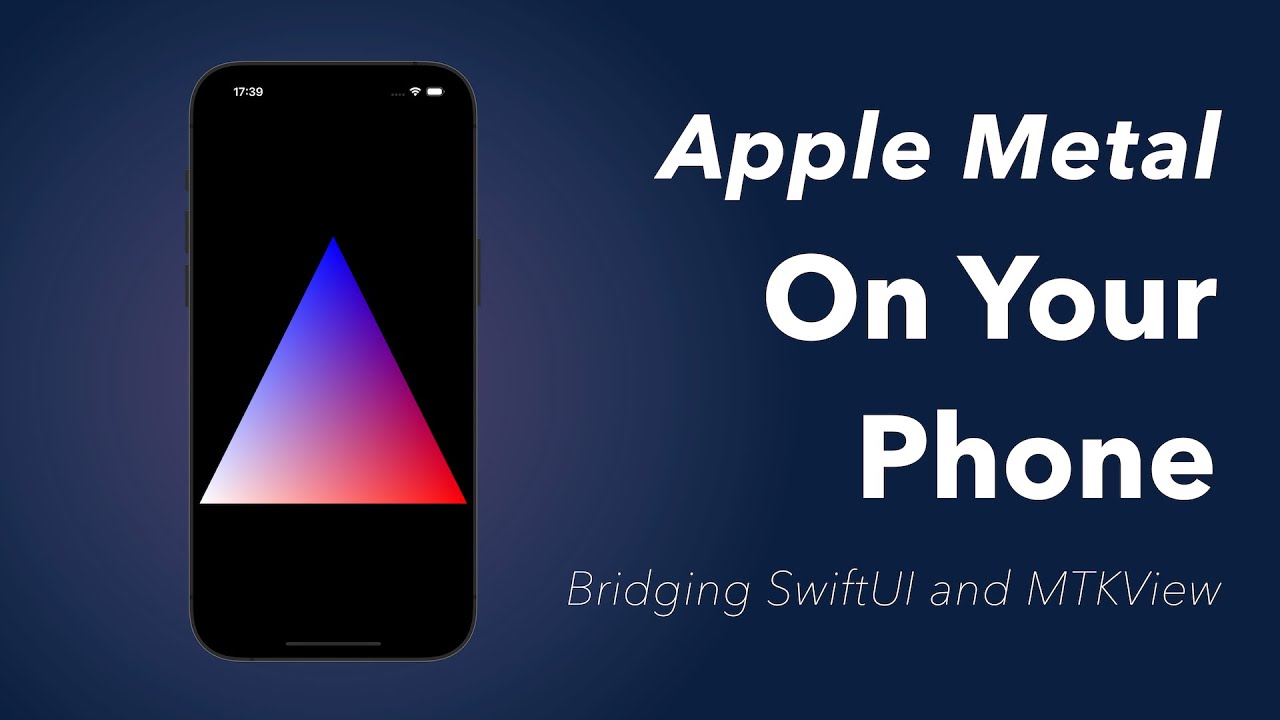
The full Xcode project is on GitHub.
What changes outside the playground
We start with a new SwiftUI project in Xcode. The app’s UI is described in code with SwiftUI, and that brings a small problem.
Before Swift existed, you wrote Mac and iPhone apps in Objective-C, with AppKit on the Mac and UIKit on iOS. Both are still in use today, and that matters for us, because MTKView is a UIKit view (or an AppKit view on the Mac), not a SwiftUI one. Apple built SwiftUI later, as a modern way to describe the UI in code instead of a graphical interface builder. It’s simpler, it makes working in a team easier, and it handles data flow better. But to use MTKView in it, we need a small object in between.
The rendering changes too. In the playground we set up all the Metal objects, issued one render call, and that was it. A real app needs to render all the time, more like 60 times per second. Our triangle doesn’t move yet, but it will soon, and then the view has to refresh constantly. We don’t need to recreate every Metal object for each frame. Some of them are expensive and should be created only once. Others are lightweight wrappers that are fine to recreate every frame.
So there are two jobs: put the Metal view into the SwiftUI hierarchy, and split the rendering into what happens once and what happens every frame.
Showing an MTKView in SwiftUI
To show an MTKView in SwiftUI, we need a struct that conforms to the UIViewRepresentable protocol. That sounds scary, but it only means implementing two functions that SwiftUI calls when it needs to create or update our view:
import MetalKit
import SwiftUI

struct MetalView: UIViewRepresentable {

    func makeUIView(context: Context) -> some UIView {
        MTKView()
    }

    func updateUIView(_ uiView: UIViewType, context: Context) {
    }
}
Our view doesn’t interact with other SwiftUI views, so updateUIView stays empty. In ContentView, we replace the defaults generated by Xcode with our view, and put a solid color behind it with a ZStack:
struct ContentView: View {
    var body: some View {
        ZStack {
            Color.blue
                .edgesIgnoringSafeArea(.all)
            MetalView().aspectRatio(1, contentMode: .fit)
        }
    }
}
The view is there and centered, but it doesn’t render anything yet.
The renderer
There are two ways to render with an MTKView: subclass it and override its methods, or give it a delegate. I prefer the delegate, because it keeps the rendering separate from the view. We create a new Swift file, MetalRenderer.swift, with a class that implements MTKViewDelegate. It needs two methods:
class MetalRenderer: NSObject, MTKViewDelegate {

    func mtkView(_ view: MTKView, drawableSizeWillChange size: CGSize) {
    }

    func draw(in view: MTKView) {
    }
}
drawableSizeWillChange is useful when your shader calculations depend on the view size. We can leave it empty for now. draw is where the rendering happens.
As I mentioned, we don’t need to set up all the Metal objects in draw. Two of them can be created once and reused for every frame: the vertex buffer and the pipeline state. The pipeline state can be especially expensive to create. It’s also good practice to create the command queue just once. And we keep a reference to the device, because the view needs it too:
let vertexBuffer: MTLBuffer
let pipelineState: MTLRenderPipelineState
let commandQueue: MTLCommandQueue
let device: MTLDevice

let vertices: [Vertex] = [
    Vertex(position2d: [0, 1], colorRgb: [0, 0, 1]),
    Vertex(position2d: [-1, -1], colorRgb: [1, 1, 1]),
    Vertex(position2d: [1, -1], colorRgb: [1, 0, 0])]
The vertex data
The Vertex struct goes into its own file, Vertex.swift, the same as in the previous part. It’s also a good place for a function that builds the vertex descriptor for an array of vertices. If vertex descriptors are new to you, read the previous part first.
import MetalKit

struct Vertex {
    let position2d: SIMD2<Float>
    let colorRgb: SIMD3<Float>

    static func buildDefaultVertexDescriptor() -> MTLVertexDescriptor {
        let vertexDescriptor = MTLVertexDescriptor()

        vertexDescriptor.attributes[0].format = .float2
        vertexDescriptor.attributes[0].bufferIndex = 0
        vertexDescriptor.attributes[0].offset = 0

        vertexDescriptor.attributes[1].format = .float3
        vertexDescriptor.attributes[1].bufferIndex = 0
        vertexDescriptor.attributes[1].offset = MemoryLayout<Vertex>.offset(of: \.colorRgb)!

        vertexDescriptor.layouts[0].stride = MemoryLayout<Vertex>.stride

        return vertexDescriptor
    }
}
Shaders in a .metal file
The shaders don’t have to live in a string anymore. We add a new Metal file to the project and paste the shaders from the previous part. Now we get syntax highlighting, error reporting and all the good stuff:
#include <metal_stdlib>
using namespace metal;

struct Vertex {
    float4 position [[attribute(0)]];
    float4 color [[attribute(1)]];
};

struct FragmentInput {
    float4 position [[position]];
    float4 color;
};

vertex FragmentInput vertex_main(Vertex v [[stage_in]]) {
    return {
        .position { v.position },
        .color { v.color }
    };
}

fragment float4 fragment_main(FragmentInput input [[stage_in]]) {
    return input.color;
}
Every .metal file in the project is compiled with the app and goes into the default Metal library, which we get from the device.
Setting everything up once
The vertices array is initialized inline, but the device, command queue, vertex buffer and pipeline state are constants without a value, and that won’t compile. Every constant of the class needs a value inline or in the initializer. To keep the code clean and handle errors in one place, we create static helper methods:
private static func createMetalDevice() -> MTLDevice {
    guard let defaultDevice = MTLCreateSystemDefaultDevice() else {
        fatalError("No GPU?")
    }

    return defaultDevice
}

private static func createCommandQueue(with device: MTLDevice) -> MTLCommandQueue {
    guard let commandQueue = device.makeCommandQueue() else {
        fatalError("Could not create the command queue")
    }

    return commandQueue
}

private static func createVertexBuffer(for device: MTLDevice, containing data: [Vertex]) -> MTLBuffer {
    guard let buffer = device.makeBuffer(bytes: data,
                                         length: MemoryLayout<Vertex>.stride * data.count,
                                         options: []) else {
        fatalError("Could not create the vertex buffer")
    }

    return buffer
}

private static func createDefaultMetalLibrary(with device: MTLDevice) -> MTLLibrary {
    guard let library = device.makeDefaultLibrary() else {
        fatalError("No .metal files in the Xcode project")
    }

    return library
}

private static func createPipelineState(with device: MTLDevice, from descriptor: MTLRenderPipelineDescriptor) -> MTLRenderPipelineState {
    do {
        return try device.makeRenderPipelineState(descriptor: descriptor)
    } catch let error {
        fatalError("Could not create the pipeline state: \(error.localizedDescription)")
    }
}
You could remove the repetition with a generic function, but I don’t want to bring in generics, trailing closures and other Swift details at this point. Let’s keep it simple.
Then the initializer uses them. With the vertex descriptor and the shader library ready, we can build the pipeline: the vertex function, the fragment function, the vertex descriptor and the pixel format. In the playground we took the pixel format from the view; here the default .bgra8Unorm works.
override init() {
    device = MetalRenderer.createMetalDevice()
    commandQueue = MetalRenderer.createCommandQueue(with: device)
    vertexBuffer = MetalRenderer.createVertexBuffer(for: device, containing: vertices)

    let descriptor = Vertex.buildDefaultVertexDescriptor()
    let library = MetalRenderer.createDefaultMetalLibrary(with: device)

    let pipelineDescriptor = MTLRenderPipelineDescriptor()
    pipelineDescriptor.vertexFunction = library.makeFunction(name: "vertex_main")
    pipelineDescriptor.fragmentFunction = library.makeFunction(name: "fragment_main")
    pipelineDescriptor.vertexDescriptor = descriptor
    pipelineDescriptor.colorAttachments[0].pixelFormat = .bgra8Unorm

    pipelineState = MetalRenderer.createPipelineState(with: device, from: pipelineDescriptor)

    super.init()
}
Rendering every frame
In draw, some errors are fine to ignore. If the drawable isn’t available, we skip the frame. If we can’t create a command buffer or an encoder, we probably got something wrong in the initializer, so that’s a fatal error. After that, the rendering commands are the ones you already know:
func draw(in view: MTKView) {
    if let drawable = view.currentDrawable,
       let renderPassDescriptor = view.currentRenderPassDescriptor {

        guard let commandBuffer = commandQueue.makeCommandBuffer(),
              let renderEncoder = commandBuffer.makeRenderCommandEncoder(descriptor: renderPassDescriptor) else {
            fatalError("Could not set up objects for render encoding")
        }

        renderEncoder.setRenderPipelineState(pipelineState)
        renderEncoder.setVertexBuffer(vertexBuffer, offset: 0, index: 0)
        renderEncoder.drawPrimitives(type: .triangle, vertexStart: 0, vertexCount: 3)

        renderEncoder.endEncoding()

        commandBuffer.present(drawable)
        commandBuffer.commit()
    }
}
Connecting the renderer to the view
The last step is to make the renderer the view’s delegate. In MetalView.swift, we add a state variable with our renderer. @State is a Swift property wrapper, a big topic outside the scope of this post. In short, it tells SwiftUI not to destroy the renderer even when the view struct is recreated.
When we create the view, we set the clear color, pass it the Metal device and set its delegate:
@State private var renderer: MetalRenderer = MetalRenderer()

func makeUIView(context: Context) -> some UIView {
    let view = MTKView()

    view.clearColor = MTLClearColor(red: 0.0, green: 0.0, blue: 0.0, alpha: 1.0)

    view.device = renderer.device
    view.delegate = renderer

    return view
}
Run the app, and the triangle renders inside a SwiftUI app on the iPhone.
Building for the Mac
There’s one more thing. If you switch the target to the Mac, the build fails. UIKit and AppKit use different prefixes: UIView becomes NSView, UIViewRepresentable becomes NSViewRepresentable, and so on.
To handle this cleanly, we use extensions. An extension lets you declare part of a struct in a second place. The main definition holds the renderer and a function that creates the view, and the extensions deal with the protocol methods. Then #if picks the right extension for each platform:
struct MetalView {

    @State private var renderer: MetalRenderer = MetalRenderer()

    private func makeMetalView() -> MTKView {
        let view = MTKView()

        view.clearColor = MTLClearColor(red: 0.0, green: 0.0, blue: 0.0, alpha: 1.0)

        view.device = renderer.device
        view.delegate = renderer

        return view
    }
}

#if os(iOS)
extension MetalView: UIViewRepresentable {

    func makeUIView(context: Context) -> some UIView {
        makeMetalView()
    }

    func updateUIView(_ uiView: UIViewType, context: Context) {
    }
}
#elseif os(macOS)
extension MetalView: NSViewRepresentable {

    func makeNSView(context: Context) -> some NSView {
        makeMetalView()
    }

    func updateNSView(_ nsView: NSViewType, context: Context) {
    }
}
#endif
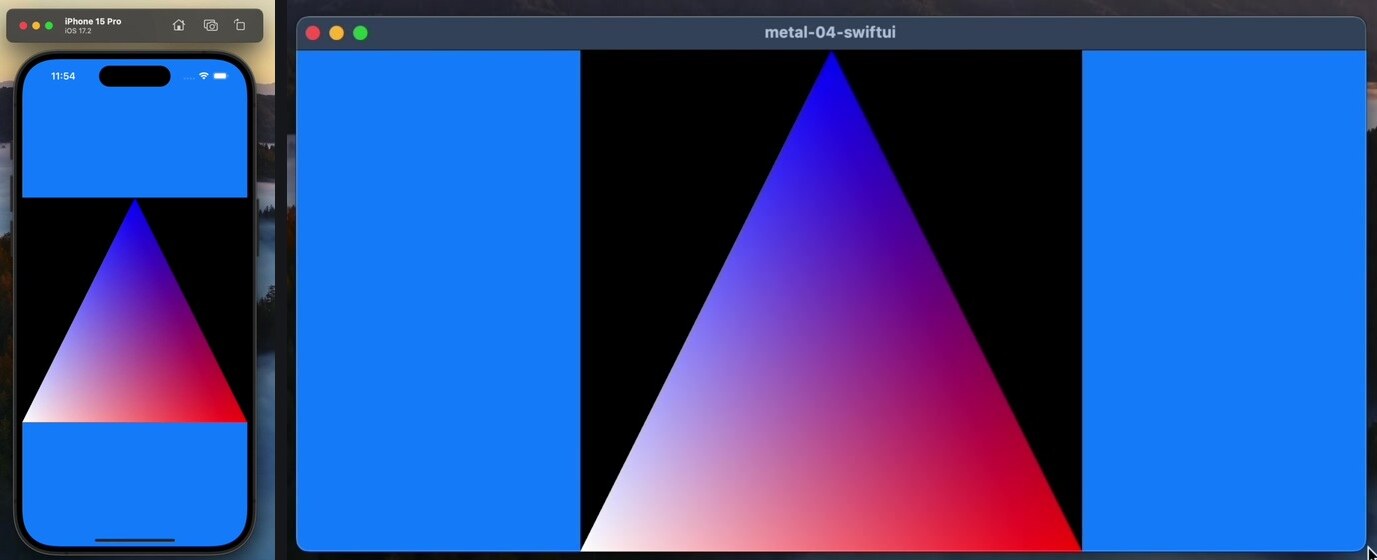
And there it is, our first Metal app, running on iOS and the Mac:
In the next part, we’ll connect SwiftUI controls to the renderer and make the triangle move.