Your First Triangle in Apple Metal: Shaders and Vertex Buffers
Draw a triangle with Apple Metal in a Swift playground: write the vertex and fragment shaders, build the render pipeline, send vertices with setVertexBytes or an MTLBuffer, and get the memory alignment right.
In the first part we set up a Metal device, a command queue and a command buffer with a single render command encoder. We ended the encoding right after creating it, so the only thing the GPU did was clear the screen. Now let’s give it something to draw: a triangle.

The full code is on GitHub. The playground is split into pages, one for each step below.
The vertices
First, we need the vertex positions. Here’s a constant array with the X, Y and Z coordinates of three points:
let vertices: [Float] = [
    0, 1, 0,
    -1, -1, 0,
    1, -1, 0]
The shaders
Shaders are tiny programs that run directly on the GPU and calculate the position and color of our geometry. Playgrounds can’t precompile shader code, so for now we keep it in a multiline Swift string. Later in this series, when we move to a full Xcode project, the Metal code gets built along with the Swift code.
The Metal Shading Language is based on C++, so we have includes and namespaces. Note that it’s not the C++ standard library, but the one provided by Metal:
let shaderCode = """
#include <metal_stdlib>
using namespace metal;

vertex float4 vertex_main(constant packed_float3 *pos,
                          uint index [[vertex_id]]) {
    return float4(pos[index], 1.0);
}

fragment float4 fragment_main() {
    return float4(0.0, 0.0, 1.0, 1.0);
}
"""
The vertex function takes the vertex array and an index, and simply returns the position. We’ll take it apart in a moment.
The fragment shader colors the geometry. We want every pixel of the triangle to be blue, so it doesn’t need any arguments. It returns a constant color with the blue and alpha components set to 1.
Compiling the shaders at runtime
Since the shader code is a string, we compile it at runtime into an MTLLibrary. The library creation throws if the compilation fails, and the error tells you what went wrong, so it’s worth catching it and printing it:
let library: MTLLibrary

do {
    try library = device.makeLibrary(source: shaderCode, options: nil)
}
catch let error {
    fatalError("Could not create Library: \(error)")
}

let vertexFunction = library.makeFunction(name: "vertex_main")
let fragmentFunction = library.makeFunction(name: "fragment_main")
The render pipeline
The pipeline descriptor describes what the rendering should look like. At the minimum, we set the pixel format and point it to our vertex and fragment functions:
let pipelineDescriptor = MTLRenderPipelineDescriptor()
pipelineDescriptor.colorAttachments[0].pixelFormat = view.colorPixelFormat
pipelineDescriptor.vertexFunction = vertexFunction
pipelineDescriptor.fragmentFunction = fragmentFunction

guard let pipelineState = try? device.makeRenderPipelineState(descriptor: pipelineDescriptor) else {
    fatalError("Could not create the pipeline state")
}
Think of the pipeline state as a lightweight object compiled from the descriptor. Creating it with makeRenderPipelineState takes some time, but once you have it, render encoders can switch between pipeline states quickly, without much overhead.
The draw call
After the command queue, the command buffer and the render encoder (the same as in part 1), we can finally issue drawing commands:
renderEncoder.setRenderPipelineState(pipelineState)
renderEncoder.setVertexBytes(vertices, length: MemoryLayout<Float>.stride * vertices.count, index: 0)
renderEncoder.drawPrimitives(type: .triangle, vertexStart: 0, vertexCount: 3)

renderEncoder.endEncoding()
The pipeline state tells the GPU what to do with the data we send. setVertexBytes is the easiest way to send that data, but it’s only meant for less than 4 KB. The stride of MemoryLayout<Float> is how many bytes we skip to get to the next float in memory, and we multiply it by the number of floats to get the total size.
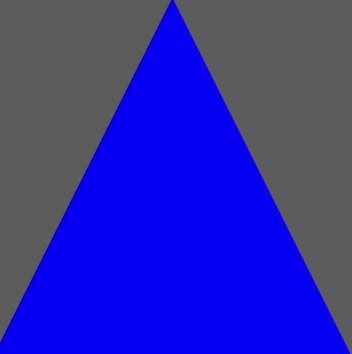
Then the draw call renders a triangle with 3 vertices:
Using a Metal buffer
For anything bigger than 4 KB, you create your own buffer. The changes are minimal. We create the buffer with similar parameters:
guard let vertexBuffer = device.makeBuffer(bytes: vertices,
                                           length: MemoryLayout<Float>.stride * vertices.count,
                                           options: []) else {
    fatalError("Could not create the vertex buffer")
}
And use it in the render encoder instead of setVertexBytes:
renderEncoder.setVertexBuffer(vertexBuffer, offset: 0, index: 0)
Notice the index parameter. Metal can use several buffers at different indices of the vertex shader’s argument table, and we can annotate the shader parameter with the index it reads from:
vertex float4 vertex_main(constant packed_float3 *pos [[buffer(0)]],
                          uint index [[vertex_id]]) {
With a single buffer, you can leave the annotation out, like we did with setVertexBytes. The triangle looks the same either way.
The vertex shader, explained
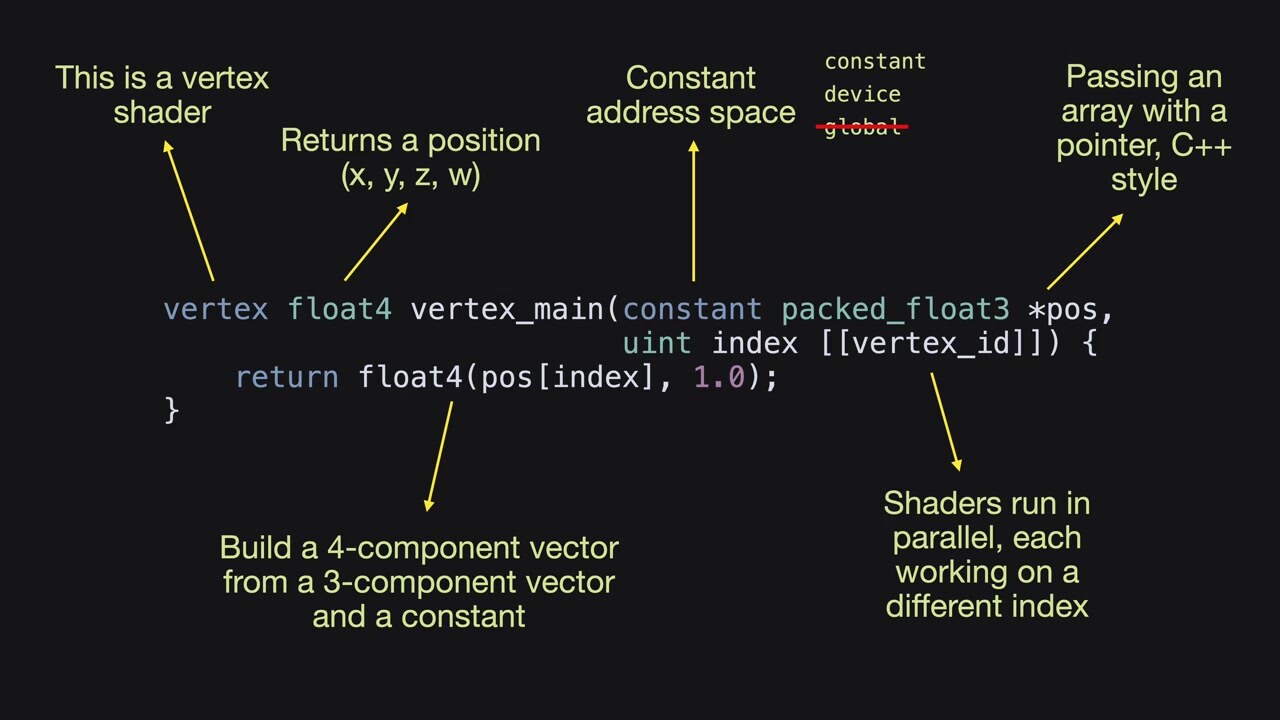
vertexsays this function is a vertex shader.float4is the return type, a vector of 4 floats. The first 3 are the 3D coordinates. The last one, W, is used for perspective division. More on that in future parts; for now we set it to 1.constantis the address space. For vertex shaders you choose betweenconstantanddevice. Older code sometimes usesglobal, which is deprecated and means the same asdevice. The Metal Shading Language specification isn’t very helpful here, but the main difference is thatdevicememory can be written to, whileconstantis read-only.constantis also optimized for many shader cores reading the same memory area. That doesn’t matter here, because each shader instance reads a different position in the buffer, so either works. You’ll seedevicemore often with buffers.packed_float3 *posis a pointer to the vertex array, C++ style. We’ll get to the “packed” part in the next section.index [[vertex_id]]tells us which vertex we’re working on. Vertex shaders run in parallel, each on a different element of the buffer.
The body returns the position at that index, built into a 4-component vector with W set to 1.
Packed vectors and memory alignment
Here’s a little experiment. What happens if we change packed_float3 in the shader to a regular float3?
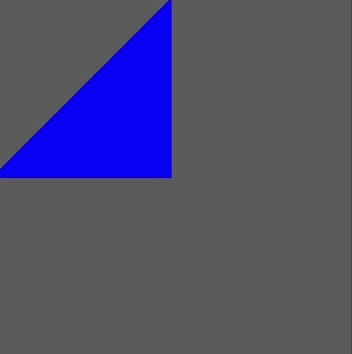
The triangle is wrong. The reason is in the Metal Shading Language specification. A float is 32 bits, so 4 bytes, and you’d guess a vector of 3 floats takes 3 × 4 = 12 bytes. It doesn’t:
| Type | Size | Alignment |
|---|---|---|
float | 4 bytes | 4 bytes |
packed_float3 | 12 bytes | 4 bytes |
float3 | 16 bytes | 16 bytes |
A float3 takes 16 bytes. Only 12 of them hold the components, and the rest is padding. So the shader reads our tightly packed floats in steps of 16 bytes and gets the wrong points.
The aligned types are more efficient to process. If you have a lot of data to prepare on the CPU before sending it to the GPU, Apple recommends using them. They’re defined in the Metal Shading Language, though, so how do you use them in Swift? SIMD types have exactly the same size and alignment as their Metal counterparts:
let vertSimd: [SIMD3<Float>] = [
    [0, 1, 0],
    [-1, -1, 0],
    [1, -1, 0]]

guard let vertexBuffer = device.makeBuffer(bytes: vertSimd,
                                           length: MemoryLayout<SIMD3<Float>>.stride * vertSimd.count,
                                           options: []) else {
    fatalError("Could not create the vertex buffer")
}
Each vector is built from 3 numbers but takes 16 bytes because of the padding. With a buffer made of these, the shader can use a regular float3, and the triangle is correct again.
Adding colors with structs
Let’s add some colors. Each vertex is now a struct with a 2D position and an RGB color. The first vertex is blue, the second white and the third red:
struct Vertex {
    let position2d: SIMD2<Float>
    let colorRgb: SIMD3<Float>
}

let vertices: [Vertex] = [
    Vertex(position2d: [0, 1], colorRgb: [0, 0, 1]),
    Vertex(position2d: [-1, -1], colorRgb: [1, 1, 1]),
    Vertex(position2d: [1, -1], colorRgb: [1, 0, 0])]

guard let vertexBuffer = device.makeBuffer(bytes: vertices,
                                           length: MemoryLayout<Vertex>.stride * vertices.count,
                                           options: []) else {
    fatalError("Could not create the vertex buffer")
}
The shader needs a matching struct. float2 and float3 have the same size and alignment as their SIMD counterparts, and the field order has to match exactly:
struct Vertex {
    float2 position;
    float3 color;
};

struct FragmentInput {
    float4 position [[position]];
    float4 color;
};

vertex FragmentInput vertex_main(constant Vertex* vertices,
                                 uint index [[vertex_id]]) {
    return {
        .position { float4(vertices[index].position, 1.0, 1.0) },
        .color { float4(vertices[index].color, 1.0) }
    };
}

fragment float4 fragment_main(FragmentInput input [[stage_in]]) {
    return input.color;
}
The second struct, FragmentInput, is new. The fragment shader can’t return a constant anymore, because the triangle has more than one color, so it takes this struct as an argument. The [[stage_in]] annotation tells Metal that the parameter comes from the previous stage, the vertex shader. Note that the Metal Shading Language supports modern C++ aggregate initialization, which is how the vertex function builds its return value.
Metal also needs to know which field holds the position, and that’s what [[position]] is for. It then interpolates the color across the triangle, which gives us this gradient:
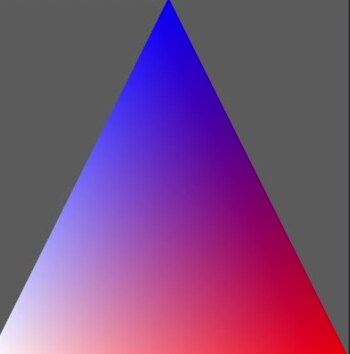
If you don’t want the interpolation, annotate the color with [[flat]]. The whole triangle then takes one color, which doesn’t look very interesting.
The rest of the code is unchanged. In the next part, we’ll look at vertex descriptors and indexed drawing.