XFCE on 4K Displays: Correct Scaling in Five Settings
XFCE's Window Scaling option only scales GTK apps. Here are the five settings that make a 4K display look right in GTK, Qt, Firefox and Emacs, plus fractional scaling.
I love XFCE. It’s fast, minimal and light. But making it work on a 4K display is a messy process. The obvious setting, Window Scaling, only does part of the job. A correct setup takes five settings spread over four dialogs, plus a sixth if 2x is too big for your screen.
Here’s the full list, in order.

The short version
If you’d rather use a terminal, these commands set the same values as the five steps below:
xfconf-query -c xsettings -p /Gdk/WindowScalingFactor -n -t int -s 2
xfconf-query -c xfwm4 -p /general/theme -n -t string -s Default-xhdpi
xfconf-query -c xsettings -p /Gtk/CursorThemeSize -n -t int -s 40
xfconf-query -c xsettings -p /Xft/DPI -n -t int -s 192
xfconf-query -c xsettings -p /Gdk/UnscaledDPI -n -t int -s 98304
-n -t creates the property if it doesn’t exist yet. Restart your apps afterwards. The rest of this post shows where each value lives in the GUI and why you need it.
1. Window scaling: 2x
Open Appearance, go to the Settings tab and set Window Scaling to 2x.
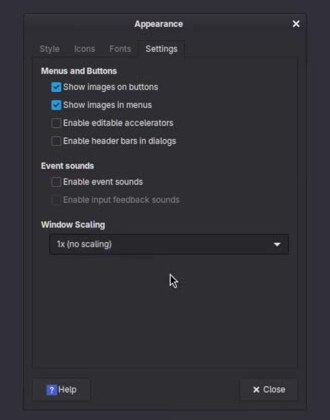
This only scales GTK applications. It doesn’t even scale the window title bars, because those are drawn by the XFCE window manager, xfwm4.
2. Title bars: Default-xhdpi
Go back to the Style tab in Appearance and click the Xfwm4 theme link at the bottom. It opens the Window Manager settings. Select Default-xhdpi as the theme.
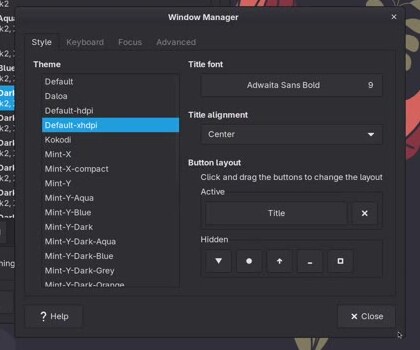
Now the title bars are scaled correctly.
3. Cursor size
Open Mouse and Touchpad, go to the Theme tab and increase the Cursor size. I set it to around 40.
At this point, GTK apps look good. Fonts and UI elements are the right size, title bars are correct and you can see the cursor. You might think you’re done.
4. DPI: 192
Non-GTK applications don’t care about the 2x window scaling. They scale their interface from the DPI value in X resources. That’s true for all Qt apps, and also for something like Emacs: its GTK build uses GTK for the menu and the toolbar, but scales its content from the DPI value. At 96 DPI, that content is way too small.
So open Appearance again, go to the Fonts tab and set the custom DPI to 2 × 96 = 192.
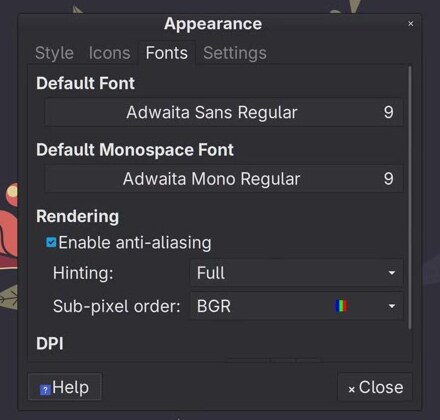
This looks awful. GTK text is huge now, but icons and other UI elements haven’t changed size. Firefox is way too big. Emacs content looks correct, but its toolbar and menu don’t. GTK apps now scale their text twice: once for the 2x window scaling and once for the 192 DPI.
Fortunately, it’s all fixable.
5. The hidden one: Gdk/UnscaledDPI
One hidden setting fixes the GTK text. Open Settings Editor, scroll the channel list to the bottom and click xsettings. Find the Gdk group. That’s GDK, not GTK: GDK is the low-level layer GTK uses for drawing, so it’s GDK’s settings we need to adjust.
The group already has WindowScalingFactor. That’s the 2x from step 1, so leave it as it is. Click Add and create a new property:
- Property:
/Gdk/UnscaledDPI - Type: Int
- Value:
98304
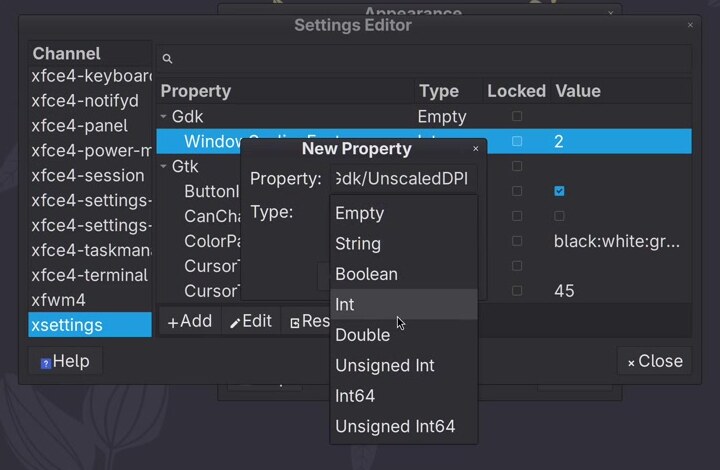
GDK reads this value in 1024ths of a DPI, so 98304 is 96 × 1024, or 96 DPI. It tells GTK what the DPI is before scaling, and GTK stops applying the 192 on top of the 2x. In the video I typed 96000, which is 93.75 DPI. It looks almost the same, but 98304 is the exact value.
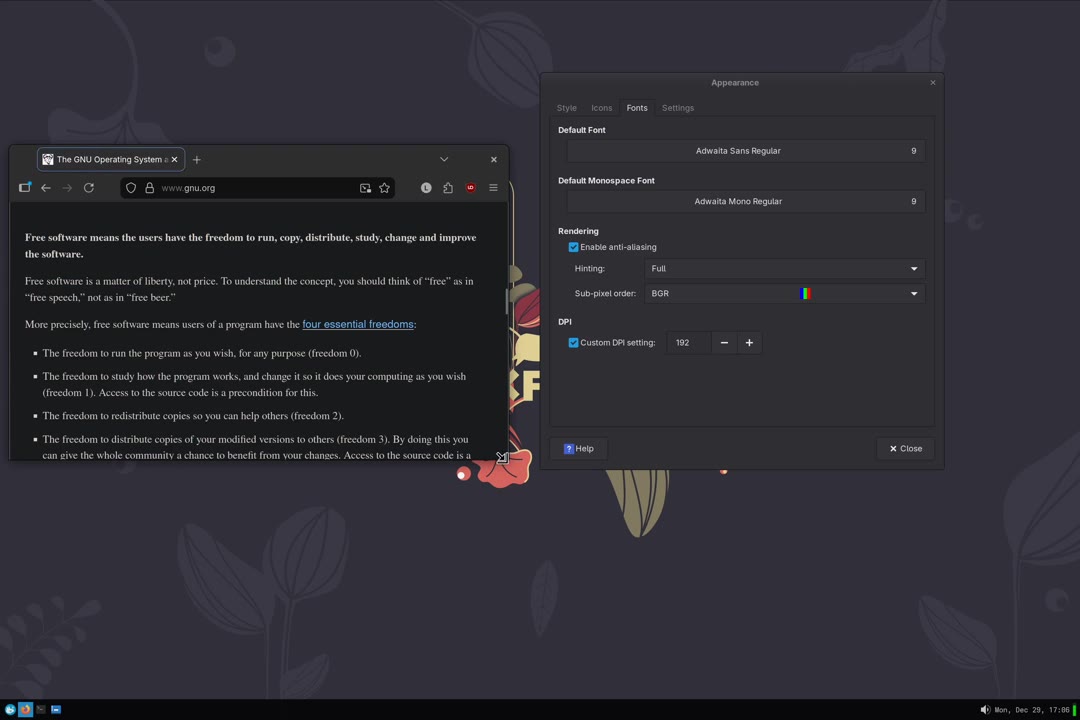
Now it looks right. Firefox scales correctly, and so do the other apps, including Qt apps and Emacs.
6. Optional: fractional scaling
If the UI size looks good on your screen, you’re done. More often than not, though, 2x is too big and 1x is way too small, and you need something in between. My laptop is a good example: at 2x, its 2560×1600 screen loses a lot of space to UI elements that are too big.
The solution is fractional scaling. Open Display settings, decrease Scale to 0.75 and click Apply. Combined with the 2x window scaling, that’s 1.5x.
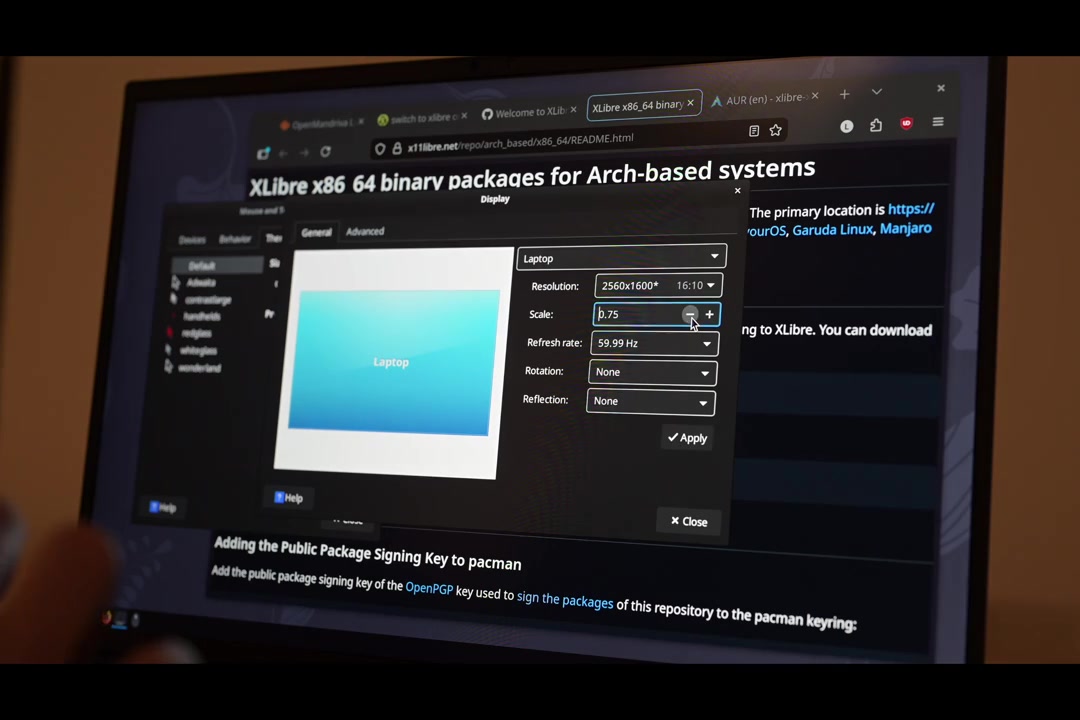
Now the proportions are right: the UI is neither too small nor too big.
Screen tearing on Intel: XLibre
One final note. On Intel machines, you might see screen tearing. This was fixed in Xorg a few years ago, but the fix was never released. If you have this problem, I recommend switching to XLibre, an alternative X server with many bug fixes that never made it into Xorg.
Some distros, like OpenMandriva, ship XLibre by default. In the video, the same laptop with the same fractional scaling on OpenMandriva shows no tearing.
On Arch, the install script I used in the video no longer works: XLibre retired that package repository in August 2026, and the script’s URL now leads to a 404. XLibre for Arch now comes from a pacman repository. First, add its signing key:
curl -O https://xlibre-arch.github.io/xlibre-archlinux.asc
sudo pacman-key --add xlibre-archlinux.asc
sudo pacman-key --finger B97F7C613F359424
sudo pacman-key --lsign-key B97F7C613F359424
Then add the repository to the end of /etc/pacman.conf:
[xlibre-stable]
Server = https://packages.xlibre.net/arch/stable/$arch
And install it:
sudo pacman -Syyu
sudo pacman -S xlibre-meta
Answer yes when pacman asks to replace the X.Org packages, then log out and back in. xdpyinfo | grep vendor (from the xorg-xdpyinfo package) should now say XLibre.